网页
综合
更新时间 2026-11-13 18:39:50
Remove Hardcoded Text From Video | Word Remover
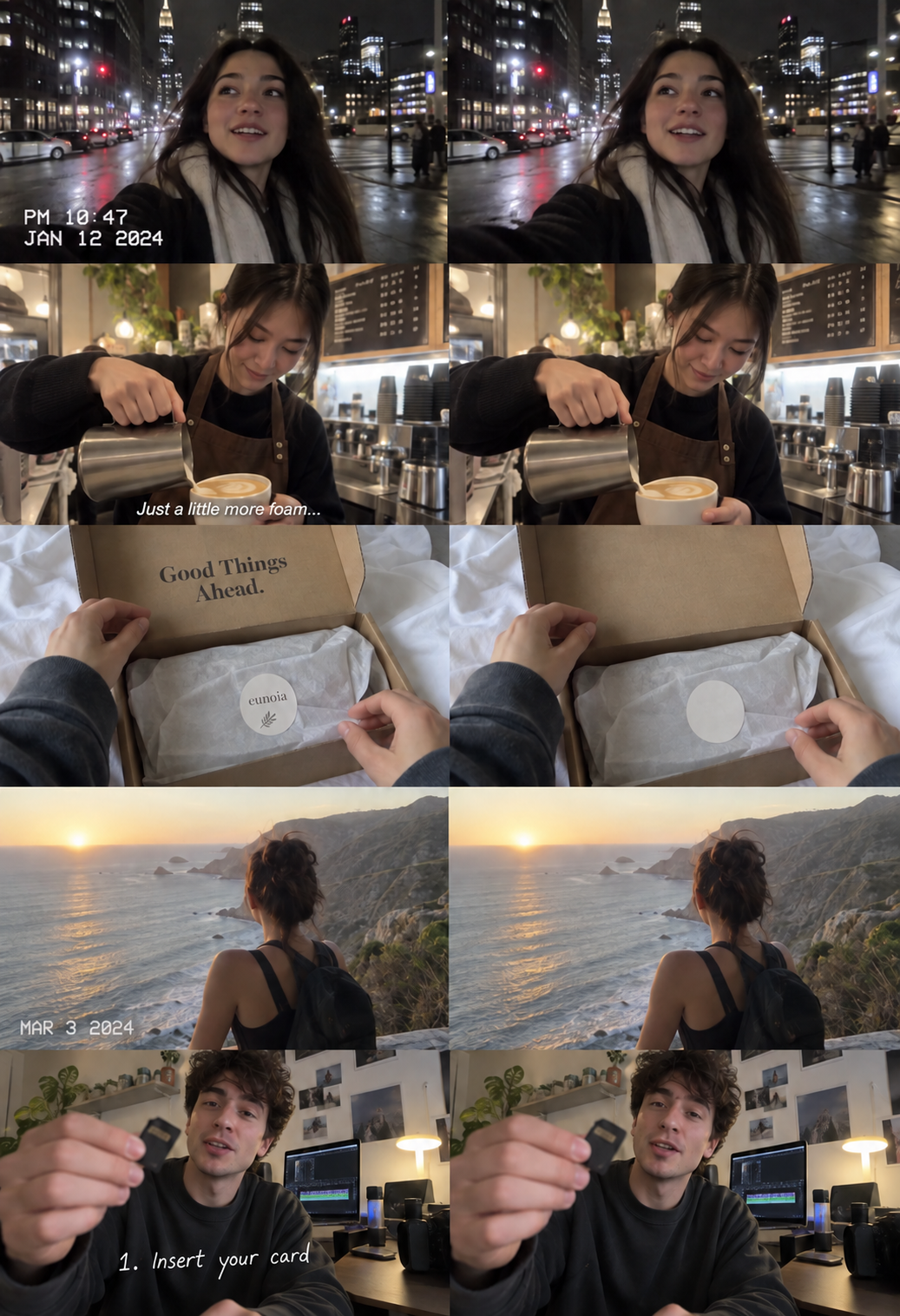
Labels in a screen recording can be harder to remove than subtitles because they often sit beside interface text that must stay readable. A tutorial callout may overlap a menu, cursor, or changing number, leaving little room for an inaccurate selection. Word Remover can attempt to repair the marked lettering, but it cannot determine which nearby information your viewer still needs.
Include the complete title and its shadow. Burned-in text requires editing the video frames.
Illustration only; this is not a processed video or a before-and-after result. Fixed boxes do not automatically track moving text. Repair can leave blur, flicker, or remaining lettering.
Hardcoded text belongs to the image, not to an editable text layer. It can be a name tag, an instruction, a headline, or a lower third added before the clip reached you. Deleting it from a timeline is impossible unless you have the original project with its layers intact. In a finished file, every letter covers some background information. Repair has to estimate that information rather than reveal a hidden clean frame. Small labels on quiet backgrounds are useful starting points. Large titles over moving people need more caution. Keep a clean source whenever possible and use this tool only for footage you are allowed to edit. To remove hardcoded text from video, begin with one label.
Plain backgrounds are easier than moving hands. Soft subtitle tracks need no repair; graphic banners extend beyond lettering.
Repair estimates hidden pixels. Fine textures may soften or flicker; unknown faces and signs cannot be recovered exactly.
Yes. The one-time free trial covers 1 eligible MP4 or MOV video, up to 30 seconds and 100 MB, without signing in. A shorter video still uses the entire trial; unused seconds cannot be saved for another video. After your first successful free processing task, further processing requires signing in and purchasing credits. Registration does not grant another free trial.
It means the lettering has been rendered into the picture. The exported file no longer has a separately editable text object at that position. Turning off captions will not remove it, and deleting metadata will not reveal the background. Look for an original project or clean camera file first. Those sources are usually better than trying to reconstruct the pixels under an existing overlay.
A small lower third may be worth testing, especially when it covers a plain shirt or a still background. A large designed banner can include shapes and shading beyond the letters, which this text focused mode may not remove cleanly. Keep the selection honest about what you want changed. If the banner remains visible, covering it with a new approved lower third may be more reliable.
A fixed selection must contain the lettering during its active range. If the words travel a long distance, one large box also includes more unrelated picture, making repair less predictable. Use shorter timed ranges where possible and check the movement carefully. The current interface lets you move and resize boxes, but it is not a promise of automatic object tracking for every moving overlay.
Not necessarily. A finished video contains the visible letters instead of the pixels they covered, so there may be no original background to recover from that frame. Repair estimates a plausible replacement using available context. That estimate can look convincing in a simple scene and wrong in a detailed one. Treat it as a visual repair, not as evidence of what was originally behind the text.
You can first attempt to clear the old lettering, then add the correct name in an editor. Compare the cleared area before placing the new text, because leftover outlines can show around your replacement. Keep the name change truthful and authorized. If the old label sits on a designed panel, replacing the complete panel in the original project is often cleaner than repairing individual letters.
A repair can vary between frames when the underlying scene moves, lighting changes, or the selection crosses a cut. Repeating patterns and edges make small differences easier to notice. Test a shorter segment around the difficult moment and check the box boundaries. After a successful free trial, starting another processing task requires purchased credits, including when you adjust the selection and process the same video again. If the repair cannot stay consistent, a deliberate cover graphic or a clean source is a better choice than repeatedly processing the same file.
Check that the label is an added instruction rather than useful interface text. Select only the overlay you want removed and avoid nearby menu items or cursor details. Small text over a uniform panel may be easier than text over an animated demonstration. Review the result for changed numbers or button labels; a visually neat repair should not make the tutorial misleading or harder to follow.
No font input is required for this workflow. You mark the area and timing, then inspect the attempted repair. Still, outlines, shadows, and translucent letters all affect how much picture the selection must include. Avoid assuming a familiar font guarantees a clean result. Use a short representative clip, including the hardest background, before deciding whether the output meets your needs for the final edit.
Clean up text and subtitles in your own videos.
Include the complete title and its shadow. Burned-in text requires editing the video frames.
Illustration only; this is not a processed video or a before-and-after result. Fixed boxes do not automatically track moving text. Repair can leave blur, flicker, or remaining lettering.
Hardcoded text belongs to the image, not to an editable text layer. It can be a name tag, an instruction, a headline, or a lower third added before the clip reached you. Deleting it from a timeline is impossible unless you have the original project with its layers intact. In a finished file, every letter covers some background information. Repair has to estimate that information rather than reveal a hidden clean frame. Small labels on quiet backgrounds are useful starting points. Large titles over moving people need more caution. Keep a clean source whenever possible and use this tool only for footage you are allowed to edit. To remove hardcoded text from video, begin with one label.
Plain backgrounds are easier than moving hands. Soft subtitle tracks need no repair; graphic banners extend beyond lettering.
Repair estimates hidden pixels. Fine textures may soften or flicker; unknown faces and signs cannot be recovered exactly.
Yes. The one-time free trial covers 1 eligible MP4 or MOV video, up to 30 seconds and 100 MB, without signing in. A shorter video still uses the entire trial; unused seconds cannot be saved for another video. After your first successful free processing task, further processing requires signing in and purchasing credits. Registration does not grant another free trial.
It means the lettering has been rendered into the picture. The exported file no longer has a separately editable text object at that position. Turning off captions will not remove it, and deleting metadata will not reveal the background. Look for an original project or clean camera file first. Those sources are usually better than trying to reconstruct the pixels under an existing overlay.
A small lower third may be worth testing, especially when it covers a plain shirt or a still background. A large designed banner can include shapes and shading beyond the letters, which this text focused mode may not remove cleanly. Keep the selection honest about what you want changed. If the banner remains visible, covering it with a new approved lower third may be more reliable.
A fixed selection must contain the lettering during its active range. If the words travel a long distance, one large box also includes more unrelated picture, making repair less predictable. Use shorter timed ranges where possible and check the movement carefully. The current interface lets you move and resize boxes, but it is not a promise of automatic object tracking for every moving overlay.
Not necessarily. A finished video contains the visible letters instead of the pixels they covered, so there may be no original background to recover from that frame. Repair estimates a plausible replacement using available context. That estimate can look convincing in a simple scene and wrong in a detailed one. Treat it as a visual repair, not as evidence of what was originally behind the text.
You can first attempt to clear the old lettering, then add the correct name in an editor. Compare the cleared area before placing the new text, because leftover outlines can show around your replacement. Keep the name change truthful and authorized. If the old label sits on a designed panel, replacing the complete panel in the original project is often cleaner than repairing individual letters.
A repair can vary between frames when the underlying scene moves, lighting changes, or the selection crosses a cut. Repeating patterns and edges make small differences easier to notice. Test a shorter segment around the difficult moment and check the box boundaries. After a successful free trial, starting another processing task requires purchased credits, including when you adjust the selection and process the same video again. If the repair cannot stay consistent, a deliberate cover graphic or a clean source is a better choice than repeatedly processing the same file.
Check that the label is an added instruction rather than useful interface text. Select only the overlay you want removed and avoid nearby menu items or cursor details. Small text over a uniform panel may be easier than text over an animated demonstration. Review the result for changed numbers or button labels; a visually neat repair should not make the tutorial misleading or harder to follow.
No font input is required for this workflow. You mark the area and timing, then inspect the attempted repair. Still, outlines, shadows, and translucent letters all affect how much picture the selection must include. Avoid assuming a familiar font guarantees a clean result. Use a short representative clip, including the hardest background, before deciding whether the output meets your needs for the final edit.
Clean up text and subtitles in your own videos.
本页为82搜索生成的网页快照,内容来自站内索引;演示数据的原文链接仅作示例。